How to Search Video Transcripts Offline on Mac
To search videos offline, first convert their speech into timestamped subtitles, then index the subtitle text. A useful result should do more than say that a phrase exists: it should preserve the start and end time so one click returns to the matching moment.
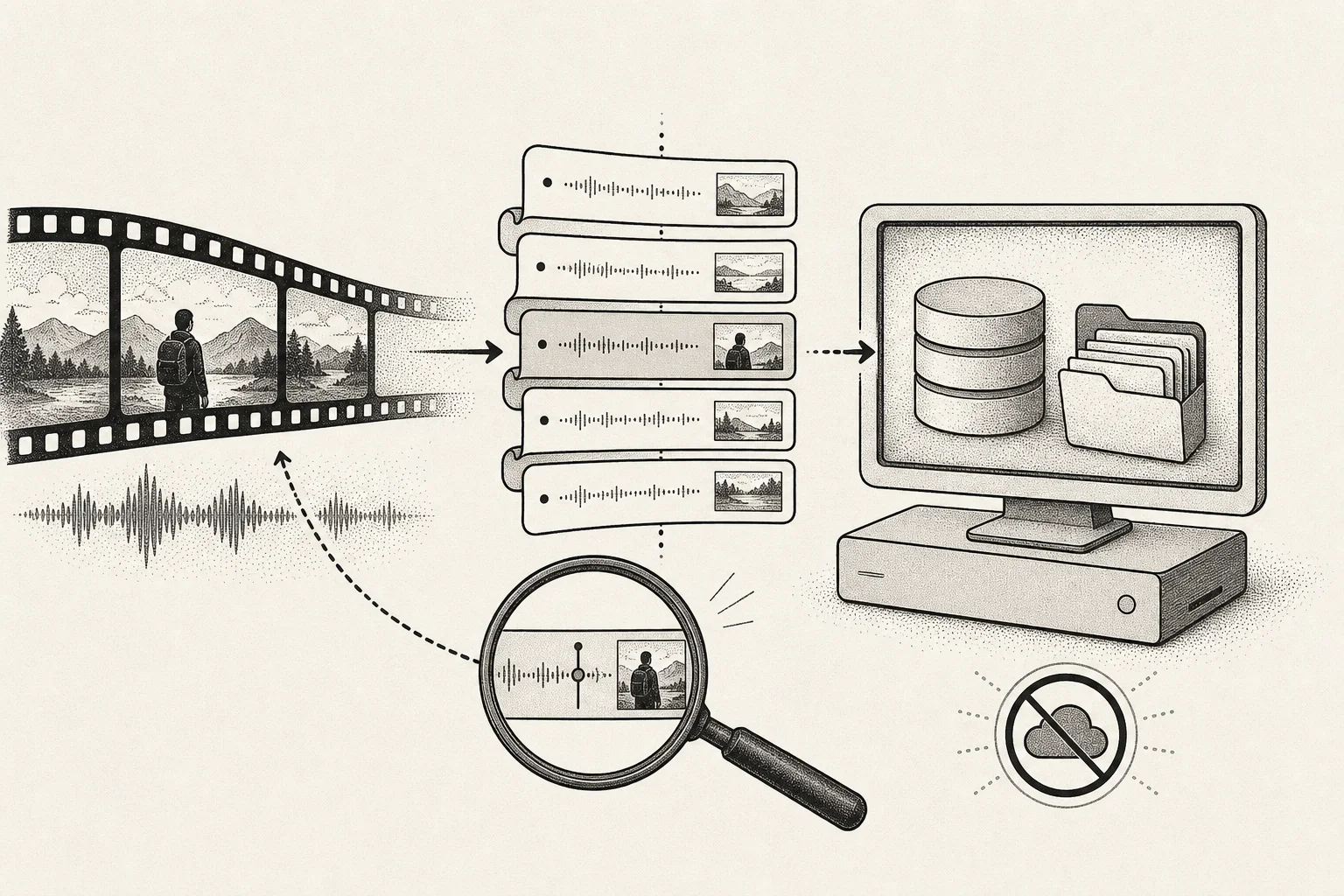
Video search is really three connected tasks
- Transcription: recognize speech from the audio track.
- Alignment: store a start and end time for each subtitle segment.
- Indexing: add the text to search while preserving its timestamp.
A plain TXT transcript can be searched, but it is awkward to verify against the source. Timestamped subtitles without a library index still make you open videos one by one. A complete workflow solves all three problems.
OpenAI Whisper is a general-purpose speech-recognition model that supports multilingual recognition, language identification, and speech translation tasks. A local application such as DoCube can run recognition on the Mac after the model files have been downloaded, without uploading the audio to a transcription website.
Choose the approach by your actual need
| Need | Approach | Limitation |
|---|---|---|
| The video already has subtitles | Import and search the existing subtitle track | Accuracy depends on the source |
| An occasional standalone transcript | Transcribe locally and export SRT or VTT | You still manage media and subtitle files separately |
| A searchable library of courses, meetings, or interviews | Keep player, timestamped transcript, and index together | Initial transcription and indexing take time |
| Search text or objects visible on screen | Add keyframe OCR or visual indexing | Whisper processes audio, not frames |
That last distinction is important. Subtitle search finds spoken language. Slide text, code on screen, and titles that nobody reads aloud do not become searchable merely because a Whisper transcript exists.
Generate and search local video subtitles in DoCube
1. Prepare the local model
Open Settings → AI Assistant and download a Whisper model from the Local Models section, then select it for video subtitles. The initial model download requires a network connection. Once the files are ready, subtitle generation itself can run offline.
Larger models generally require more memory and processing time. Before a long job, leave enough storage for the model, temporary audio, and subtitle data, and close other memory-heavy applications.
2. Import the video and create subtitles
Import a local video into DoCube and open the video document:
- If the file contains a usable embedded subtitle track, you can use it directly.
- If it has no subtitles, choose Generate Subtitles to start local recognition.
- An interrupted or incomplete job can continue later.
- Keep the app and current document open while recognition is active and watch the progress indicator.
When subtitles are ready, the subtitle list follows playback and highlights the current cue. Selecting a cue jumps to its start time.
3. Search the current video
Open Find in Document and enter a word or phrase. This searches the current subtitle text; it does not re-analyze the audio or frames. Results include the matching cue and context, and selecting one jumps to that time.
This is fastest for names, terminology, and remembered quotations. If subtitles are incomplete or the recognizer misspelled the word, the match will be absent.
4. Search across a video library
Video subtitles also enter DoCube's library-wide index. Select “Search in DoCube” in the tab bar to search multiple videos together with PDFs, EPUBs, saved webpages, Markdown, and your annotations.
Library results retain subtitle timestamps. Opening one returns to the matching moment instead of merely opening the beginning of the video.
5. Turn a useful moment into retrievable knowledge
Select subtitle text to create a highlight, quote, Markdown annotation, link, or card. The annotation stores both the selected words and the time range, so opening it later still returns to the source moment.
To cite a segment from another note, copy the DoCube address at that video position. The address identifies the video and its playback time.
What offline transcription actually protects
Local Whisper keeps the audio from being uploaded to a third-party transcription website. That is useful for meetings, interviews, course recordings, and unpublished material.
Later features can have different boundaries:
- Local subtitle generation and subtitle search can run offline after model download.
- Subtitle translation sends relevant text to the online provider you configure.
- AI-generated chapter outlines also depend on the configured online service.
Do not assume that every downstream operation is local merely because the transcript was created locally.
Improve transcription and search accuracy
- Prefer a clear track with close speech, limited music, and little room echo.
- Choose a model that fits the Mac's memory and the recording length.
- Review and correct names, acronyms, numbers, and technical terms.
- If a query fails, try a shorter phrase, stem, or likely phonetic spelling.
- For multilingual recordings, confirm that the detected source language is sensible.
- Return to the audio and frame for important claims; do not treat the transcript as the source of record.
When subtitle search is not enough
Additional visual processing is required when you need to:
- Find text on a slide that the speaker never said.
- Locate a product, person, scene, or action.
- Search menus or code in a silent screen recording.
- Retrieve by visual similarity rather than spoken language.
Those tasks need keyframe extraction, OCR, image captioning, or visual embeddings. They complement speech transcription; they are not the same Whisper capability.
Frequently asked questions
Can the first run be completely offline?
No. The local Whisper model must be downloaded first. After a complete download, subtitle generation and transcript search in DoCube can work offline.
Can a result jump directly to the matching video time?
Yes. Both in-document subtitle results and library-wide video results preserve time locations. Subtitle annotations preserve their cue range too.
Does Whisper search text visible in video frames?
No. Whisper processes the audio track. On-screen text needs OCR or a visual index, and unspoken content will not appear in transcript search.
Can an automatic transcript be used as an official record?
It should be reviewed first. Names, numbers, negation, and domain terminology are common error points. Formal minutes, quotations, and legal material should be checked against the original audio.
To connect a useful video moment with your reading notes, continue with How to Link Notes to Exact Places in PDFs and EPUBs.