How to Search Across Hundreds of PDFs on Mac — Including Scanned PDFs
To search hundreds of PDFs, do not open every file and press Command-F. First check whether each PDF has a searchable text layer, then index the collection as a whole. Image-only scans need OCR before any cross-document search can reliably find their contents.
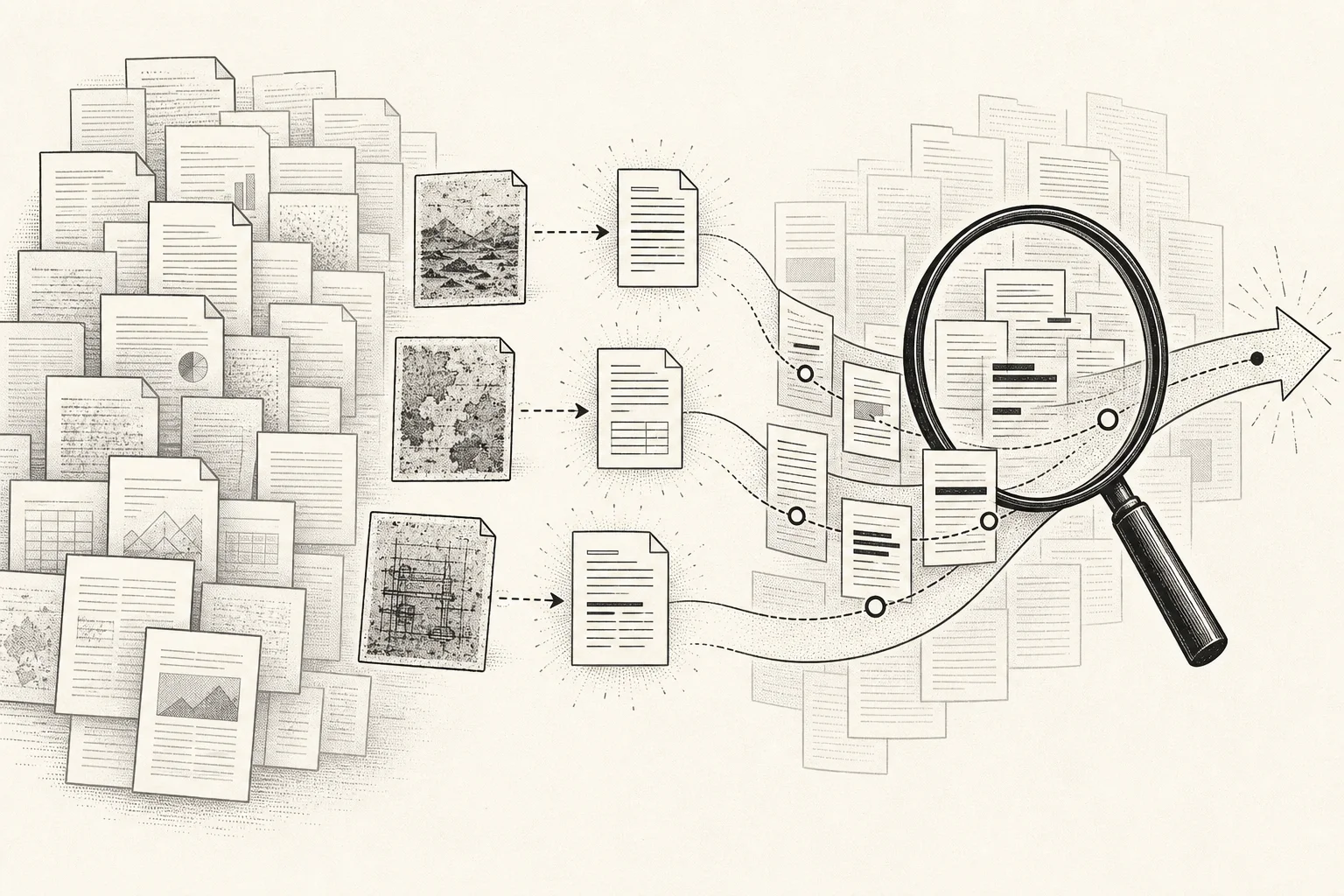
Start with a 10-second test: text PDF or image scan?
Open one PDF and try to select a sentence:
- If individual words and lines can be selected, the file already has a text layer.
- If only the whole page can be selected, or no text selection is possible, it is probably an image-only scan.
- If selection works but copied text is garbled, the layer exists but its encoding or OCR quality is poor.
This distinction matters because search software can only index text it can actually extract. A page that visibly contains words does not necessarily contain searchable characters.
Pick the search method that fits the collection
| Situation | Practical method | Main limitation |
|---|---|---|
| One open PDF | Command-F in Preview or a PDF reader | No cross-file comparison |
| PDFs in one stable folder | Spotlight or Acrobat multi-file search | Scans and broken text layers can still be missed |
| Hundreds or thousands of long-term references | A local document library with a persistent full-text index | Initial import and indexing take time |
| You remember the idea, not the wording | Keyword search plus a local semantic index | Requires an additional model and compute resources |
Spotlight is a useful first attempt on macOS. Apple says its regularly updated, private index stays on the device, although indexing a large collection can take time. See Apple's explanation of Spotlight indexing.
For a folder of PDFs, Acrobat's Advanced Search can search a selected location instead of only the current document. Adobe also supports catalog indexes for large, stable collections. See Adobe's guide to searching PDFs.
Folder search becomes less useful when the same project also contains EPUBs, saved webpages, Markdown notes, video transcripts, highlights, and comments. A local document library can index those sources together and preserve a route back to the matching page, chapter, or timestamp.
Why scanned PDFs need OCR first
An image-only PDF is a stack of page pictures. Optical character recognition turns visible characters into machine-readable text that selection and search tools can use.
Three habits make OCR safer:
- Choose the correct primary language, adding a secondary language for mixed-language documents.
- Keep the original file or a backup before processing a large batch.
- Sample-check names, numbers, formulas, and multi-column reading order.
Low-resolution pages, formulas, code, and complex columns are common failure points. OCR makes a scan searchable; it does not make the recognized text authoritative. Adobe likewise describes OCR as the step that creates selectable, searchable text from page images and recommends reviewing the result. See Adobe's scanned-document OCR guide.
Build a searchable local PDF library in DoCube
For a collection you expect to keep using, the workflow is:
- Import files from the Add menu, or use directory import to scan a folder in bulk. Enable “Keep Directory Structure” when the source hierarchy matters.
- Open an image-only PDF and choose Text Recognition from the Mac toolbar. Select the primary and any secondary languages, then start OCR.
- When recognition finishes, DoCube reopens a version with a text layer. The imported original PDF is not directly rewritten.
- Allow newly imported or recognized text to finish parsing and indexing. A large collection is processed in stages.
- Select “Search in DoCube” in the tab bar, enter a keyword, exact passage, or short question, then press Return.
- Filter results to PDFs, a tag, a source document, or a content source such as body text or annotations.
- Inspect the result snippet, then open the source. A PDF result returns to the matching page and location.
DoCube's library search includes PDF, EPUB, HTML, Markdown, MinerU documents, and video subtitles. It also indexes highlights, quotes, links, Markdown annotations, and cards, so a phrase you wrote yourself can lead back to the original source.
When semantic search helps
Keyword search is best for names, identifiers, technical terms, and remembered phrases. Semantic search becomes useful when:
- You remember a concept but not the author's wording.
- Several authors use different terms for the same idea.
- You want related passages rather than exact strings.
In DoCube, you can download the local QWen3 Embedding model and enable Semantic Search for a new query. The results merge BM25 keyword ranking with vector matches. After the model is downloaded, vector indexing and retrieval can run offline on the device. The first pass over a large library still takes storage, memory, and time.
Semantic similarity is not factual agreement. Always open the source when numbers, conditions, or conclusions matter.
If a known phrase does not appear, troubleshoot in this order
- Search inside the current PDF. If that fails too, inspect the text layer or OCR result.
- Shorten the query. Start with two or three consecutive words instead of a long question.
- Wait for indexing. Newly imported, recognized, or edited content may not be searchable immediately.
- Remove filters. Check document type, tag, source, and case-sensitive options.
- Check permissions and encoding. Encryption, corruption, and unusual font maps can block extraction.
- Rebuild the index last. Reindexing cannot repair a missing text layer.
Local search is not the same as AI summarization
Keyword indexing, OCR, and local embeddings can stay on the device. AI summaries of search results are a separate operation: when enabled, the query and selected result snippets are sent to the AI provider you configured. For confidential papers, contracts, or internal records, treat retrieval and online summarization as two different privacy decisions.
Frequently asked questions
Can Spotlight search every scanned PDF?
Not reliably. Spotlight depends on indexable content. Image-only pages, damaged text layers, or files that have not finished indexing can be absent. OCR the file first, then test a distinctive phrase.
Does OCR change the visible PDF pages?
It depends on the tool. DoCube creates a recognized version while preserving the page appearance and does not directly rewrite the imported original. Before using another batch tool, check its output and overwrite policy.
For thousands of PDFs, should I use keyword or semantic search?
Build a dependable keyword index first. It is explainable and remains best for names, numbers, and exact terminology. Add semantic retrieval as a second route rather than replacing keyword search.
If you are also deciding where annotations and reading notes should live, continue with How to Manage PDF and EPUB Notes Locally. DoCube is free to try on the App Store, so you can validate the workflow with a small library first.