
Create MinerU Archive File
Before creating a MinerU archive file, you need to use MinerU to complete the PDF file conversion and locate the MinerU output directory. Visit the MinerU official website to learn how to convert PDF files. Or check the MinerU GitHub repository to learn how to deploy and run MinerU locally on Mac.
Using MinerU Client
Open the output directory from the MinerU client. 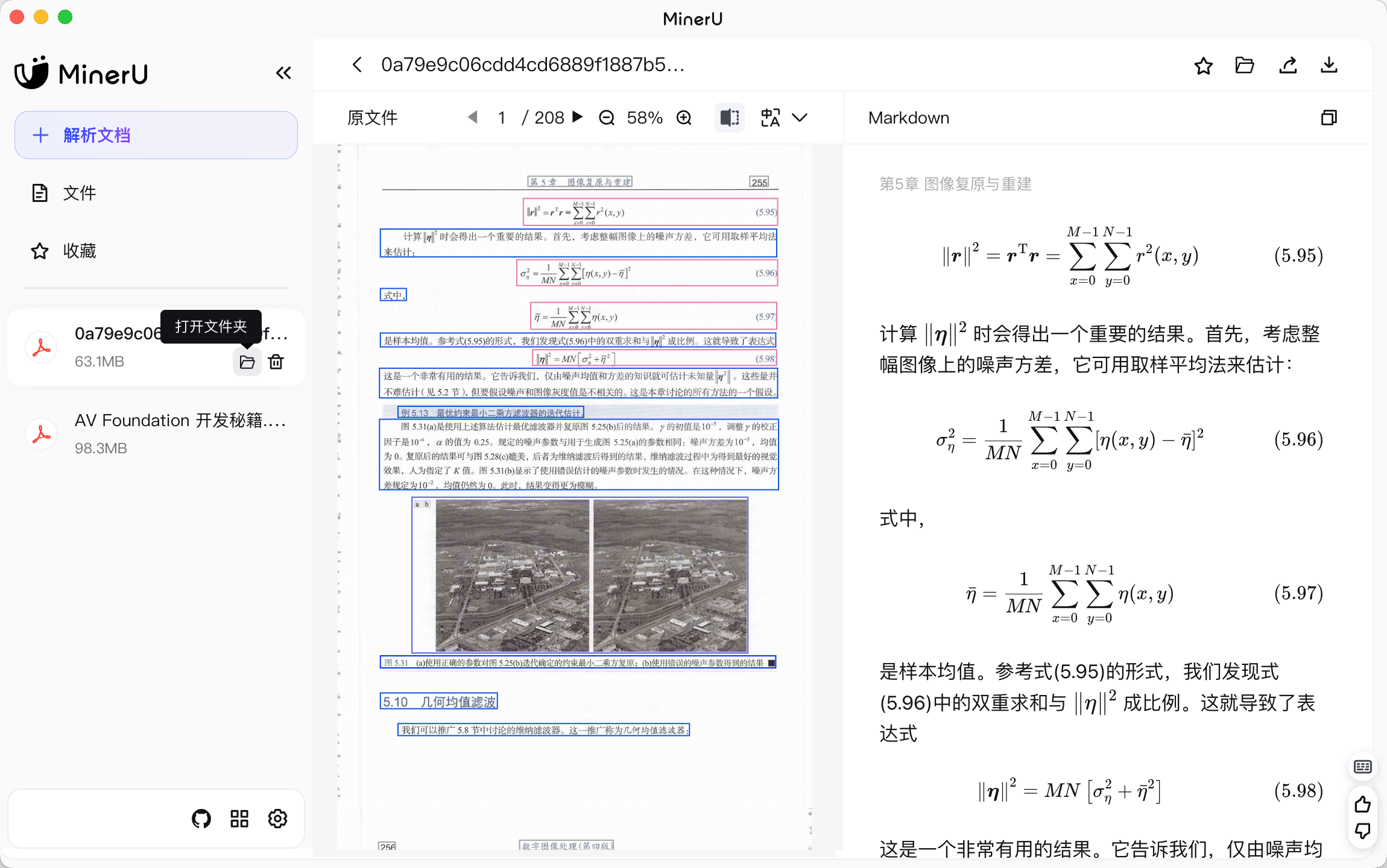
In the MinerU output directory, select the content_list.json, origin.pdf files, and the images folder. Then right-click and choose Compress 3 Items.
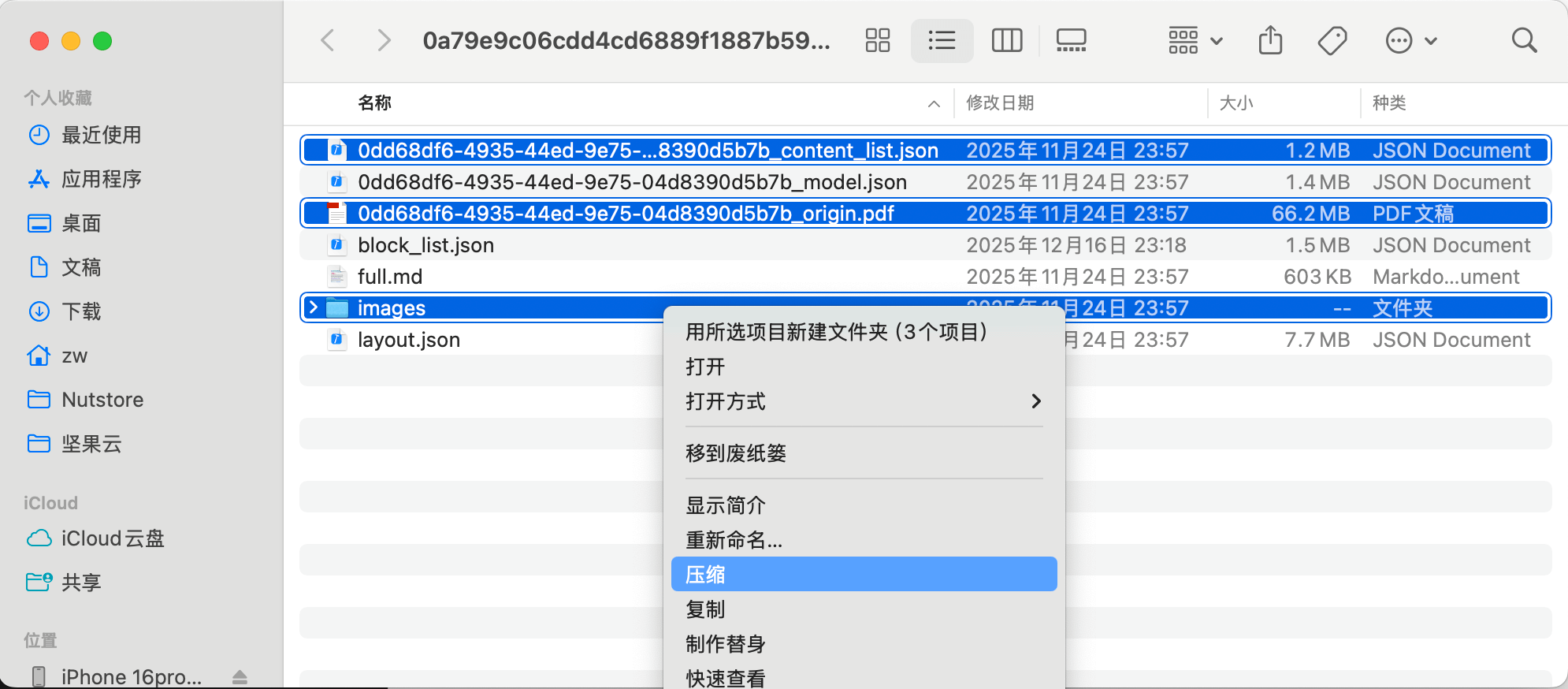
After compression is complete, a compressed file named Archive.zip will be generated. Rename this file to your_filename.mineru to get the MinerU archive file.
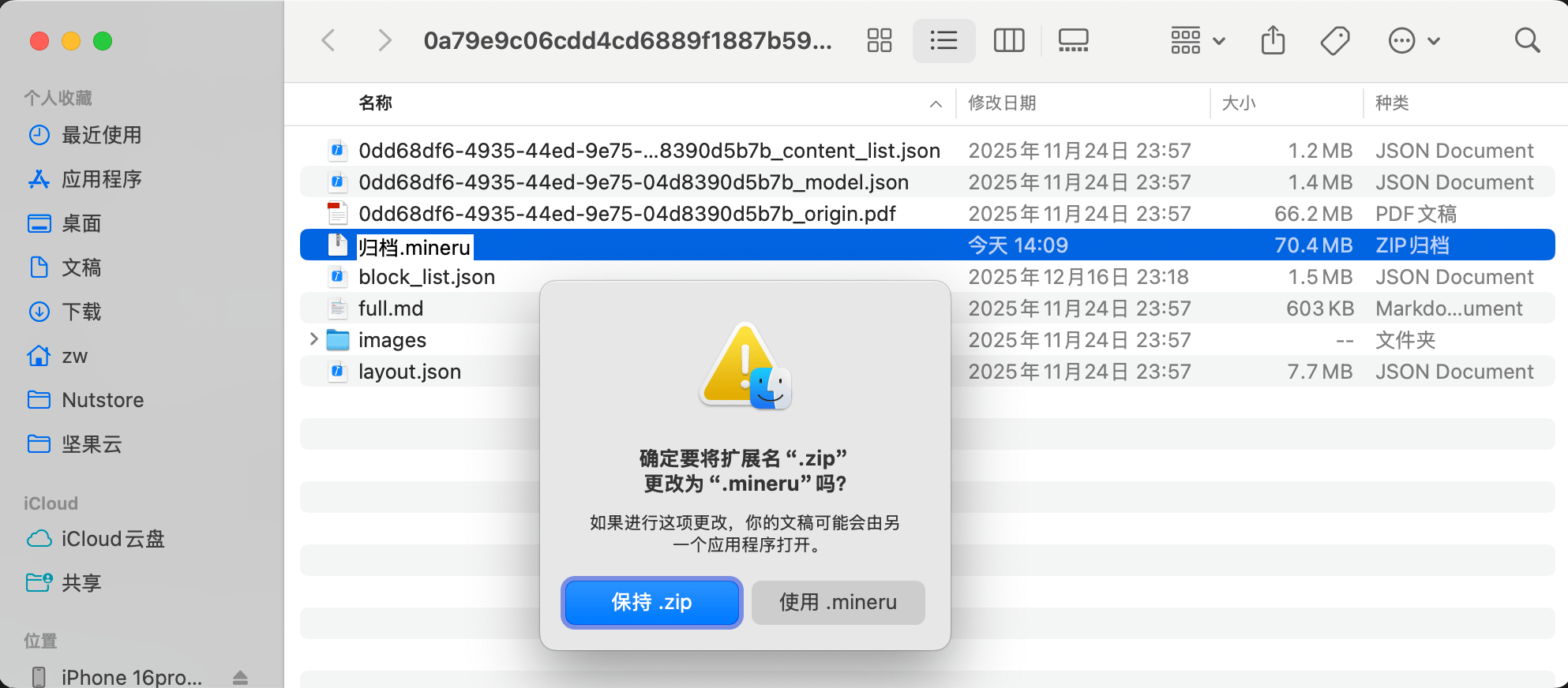
Now you can import the MinerU archive file into DoCube.
Local Deployment on Mac
- For local deployment, it's recommended to use a device with Apple Silicon chip and at least 16GB of memory
- Local deployment steps are relatively complex. If you encounter issues, you can refer to the official repository or contact DoCube.
- Due to different Mac environments, terminal styles and outputs may vary. The terminal outputs in the following instructions are for reference only
Environment Setup
Open the `Terminal` application and enter the following command to create a mineru environment:
python3 -m venv mineru
Then activate the mineru environment by entering the following command:
source mineru/bin/activate
Install MinerU
Enter the following command to install pip (you can skip this step if you have already installed pip):
sudo python3 get-pip.py
After successful installation, you will see the following output Successfully installed pip-25.3:
Next are the official MinerU steps:
1. Upgrade pip by running the following command:
pip install --upgrade pip -i https://mirrors.aliyun.com/pypi/simple
2. Install uv by running the following command:
pip install uv -i https://mirrors.aliyun.com/pypi/simple
After execution, you will see Successfully installed uv-0.9.21
3. Install mineru by running the following command:
uv pip install -U "mineru[all]" -i https://mirrors.aliyun.com/pypi/simple
The installation process is quite long and requires downloading multiple dependency packages.
Run MinerU
After completing the above steps, you can now run MinerU locally to convert PDFs. If you cannot access huggingface in your region, first switch the model download source by running the following command:
export MINERU_MODEL_SOURCE=modelscope
Then run the following command to start converting PDF files:
mineru -p origin_file.pdf -o ./output
Where origin_file.pdf is the path to the PDF file you want to convert, and ./output is the output directory path.
- You can first type
mineru -pand then drag the PDF file you want to convert into the `Terminal` window. This will auto-complete the file path.
- The `./output` output directory can be customized. For example, you can specify it as
~/Desktop/mineru_output, which will create amineru_outputdirectory on your desktop.